

Timeline Block Plugin for Gutenberg allows you to create a beautiful vertical & horizontal “Content-Timeline-Block” and default “Post-Timeline-Block” by Ascending or Descending order based on random, title, date, menu-order of default posts or custom posts With Slider. You can use it to showcase important dates and milestones for your company’s history, and display blogs engagingly and practically.
About Timeline Block
- Timeline Block Plugin for Gutenberg allows you to create beautiful vertical & horizontal “Content-Timeline-Block” and “Timeline-Block”.
- Timeline Block Plugin for Gutenberg is a Gutenberg add-on with many additional options for Post-Timeline, Page-Timeline and Content-Timeline to provide the vertical & horizontal timeline Layout.
- It is a standalone Gutenberg solution to give wow design possibilities for your blog posts, pages and content with a clean design and fully responsive layout.
- Users can show their stories, events, appointments, concerts, future, and history by using Timeline Blocks on your website.
- Users can easily create a timeline in real-time using Gutenberg blocks and settings.
- Users can create a compact timeline, it means a timeline without a lot of space between stories or items.
- It’s developer friendly and also you can easily customize timeline stories by using default query.
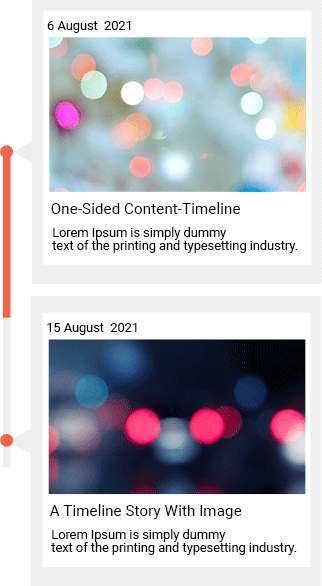
Right-Side Vertical Timeline
– With this option you can create right-sided vertical content-timeline or post-timeline.
– Orientation Options allow to change Orientation of Connector, also there is three option left, right & both-side and you can select at a time any one.
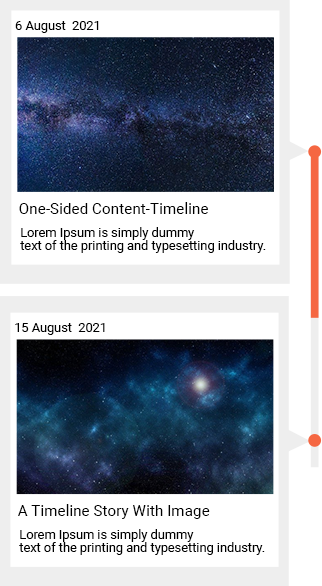
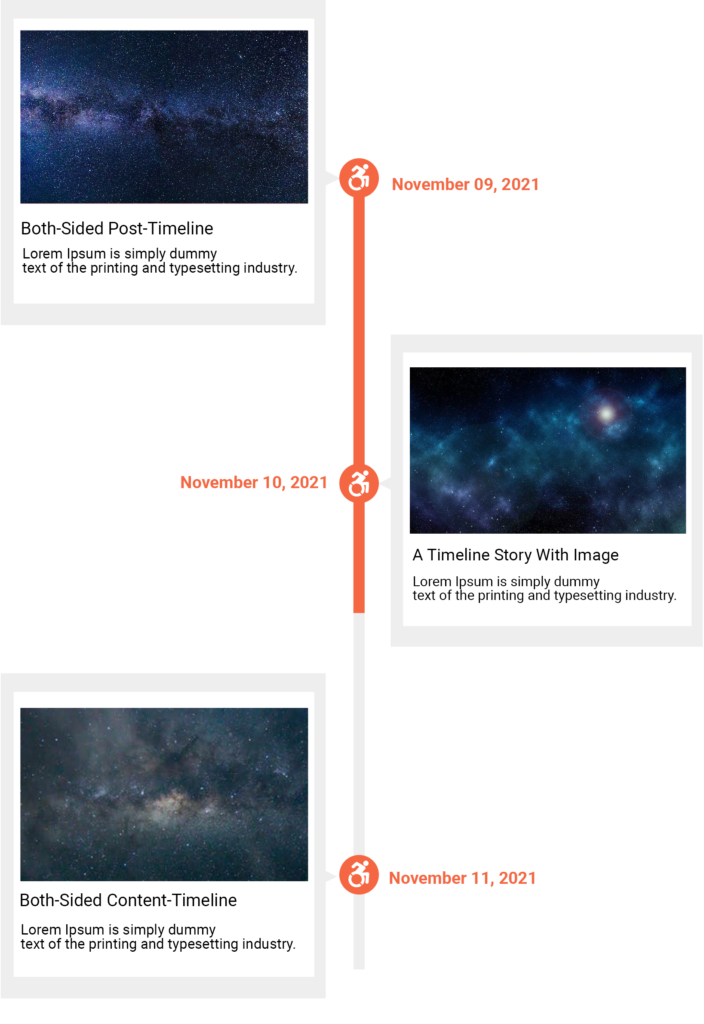
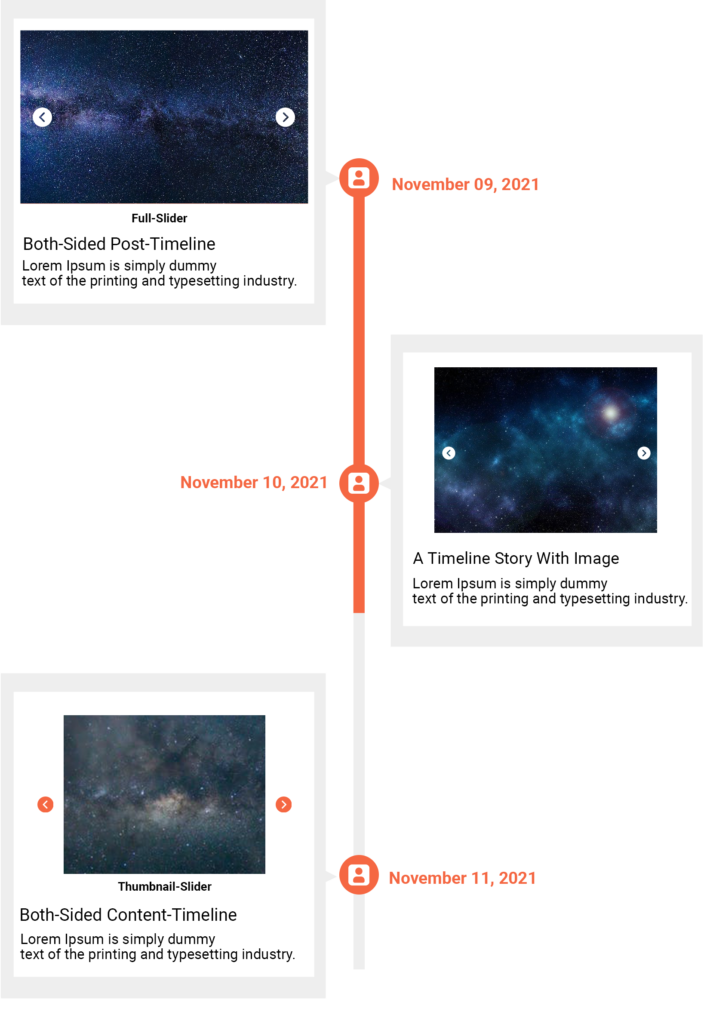
Image Slider With Each Block On Content-Timeline
– We gives you a option to add image slider on each block.
– Inside the Gallery / Image Slider setting we have options like “Link to”, “Image Size”, “Image Border Radius”, “Slider Icon Size”, “Image Vertical Spacing”, “Slider Icon Color Settings”.
– Link to : With the link-to option you can link media file or attachment file.
– Image Size : With the image-size option you can set images size like “Thumbnail”, “Medium”, “Full”.
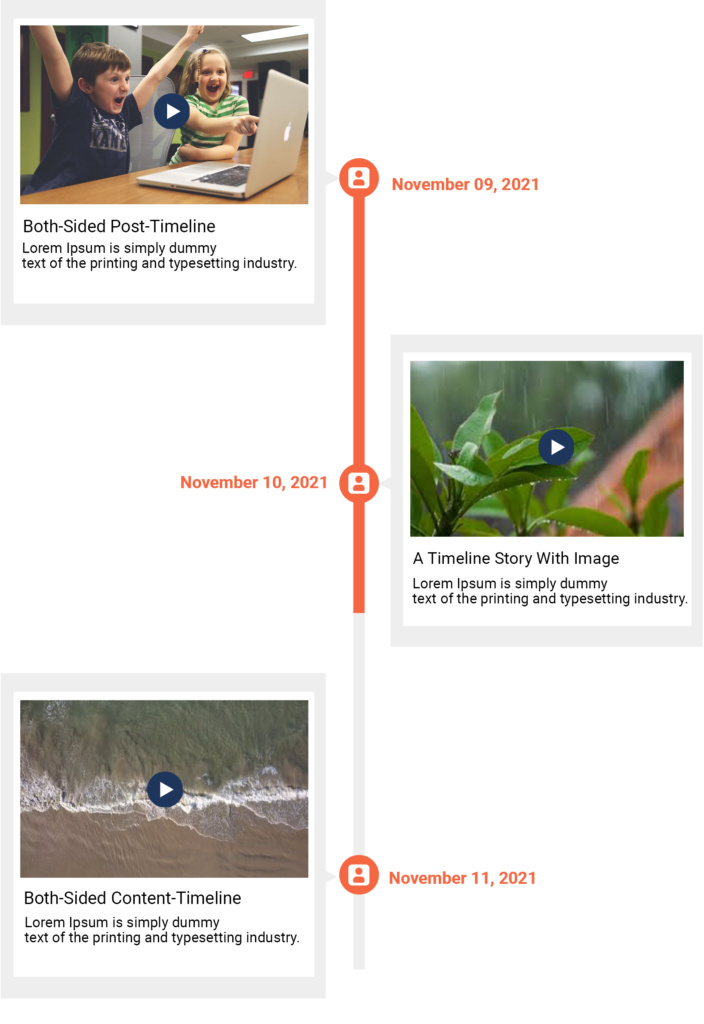
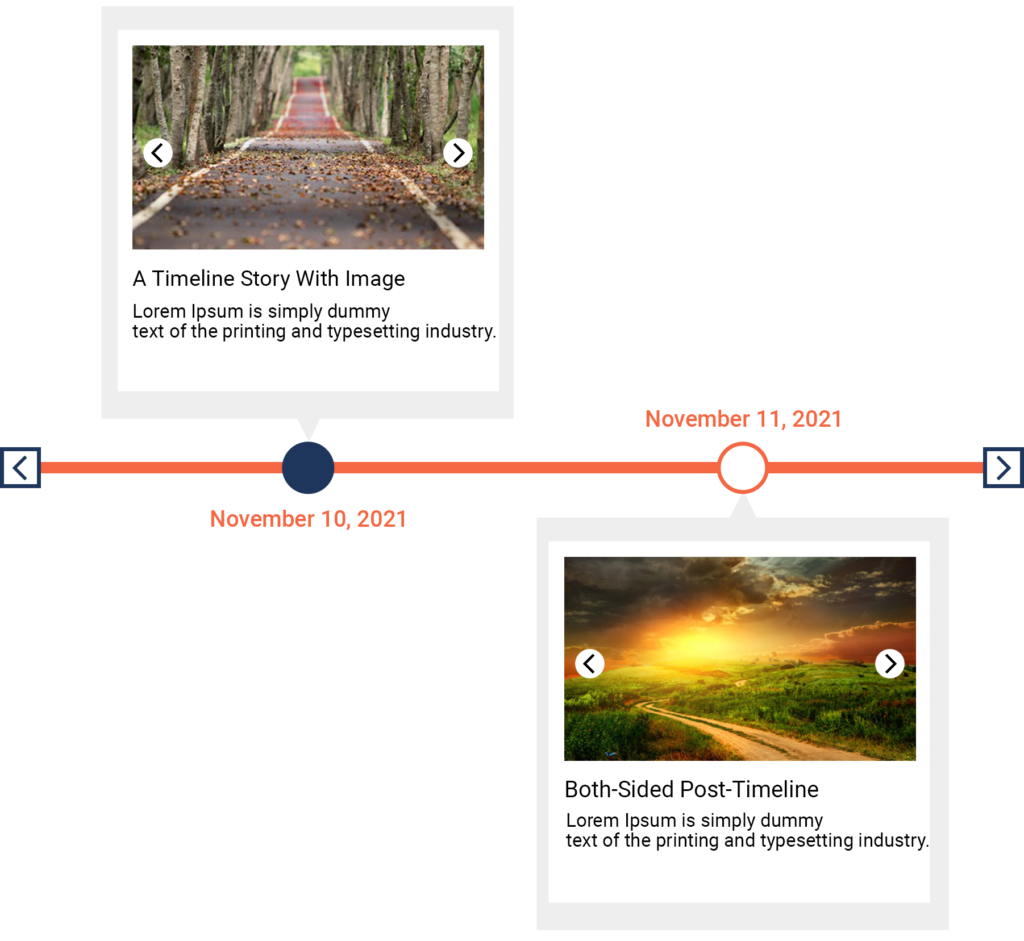
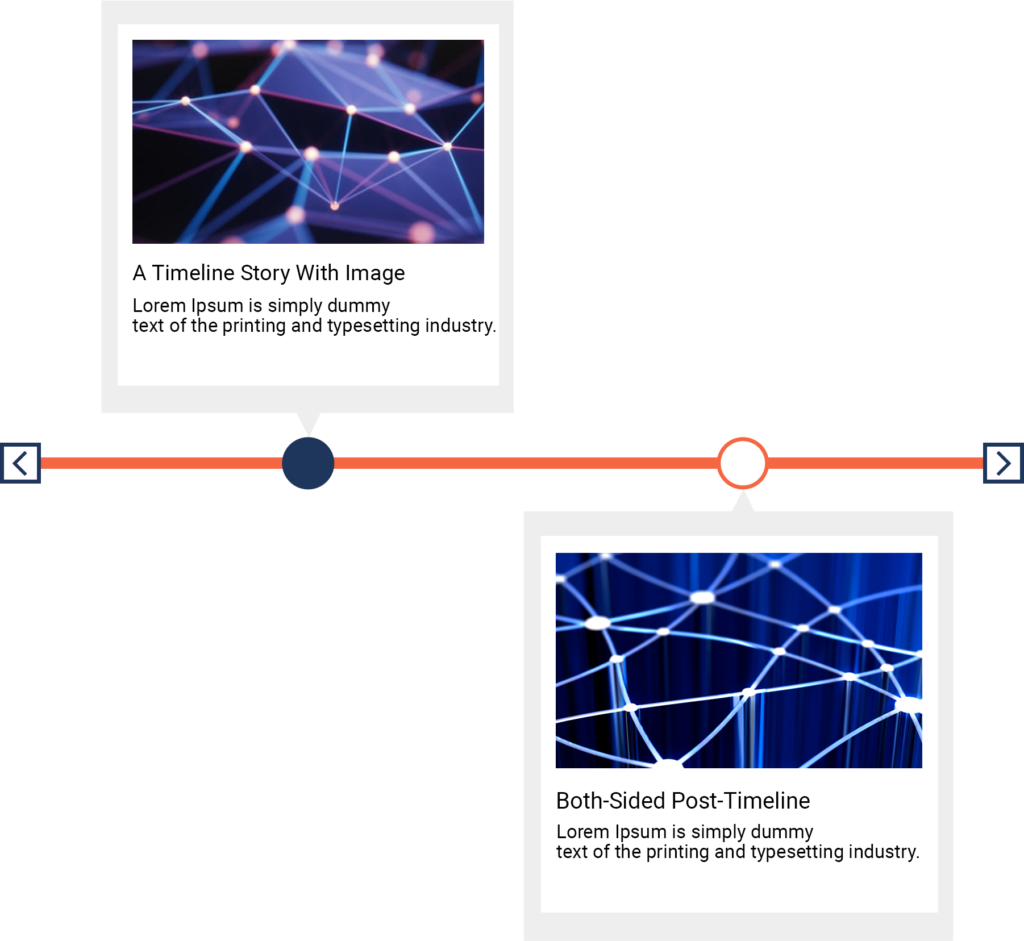
Both-Side Horizontal-Timeline
– Using this option you can create both-sided horizontal content-timeline or post-timeline.
– Orientation Options allow to set Connector in center of Timeline blocks.
– With the Arrow Alignment option you can set Connector point to Left, Right and Center.
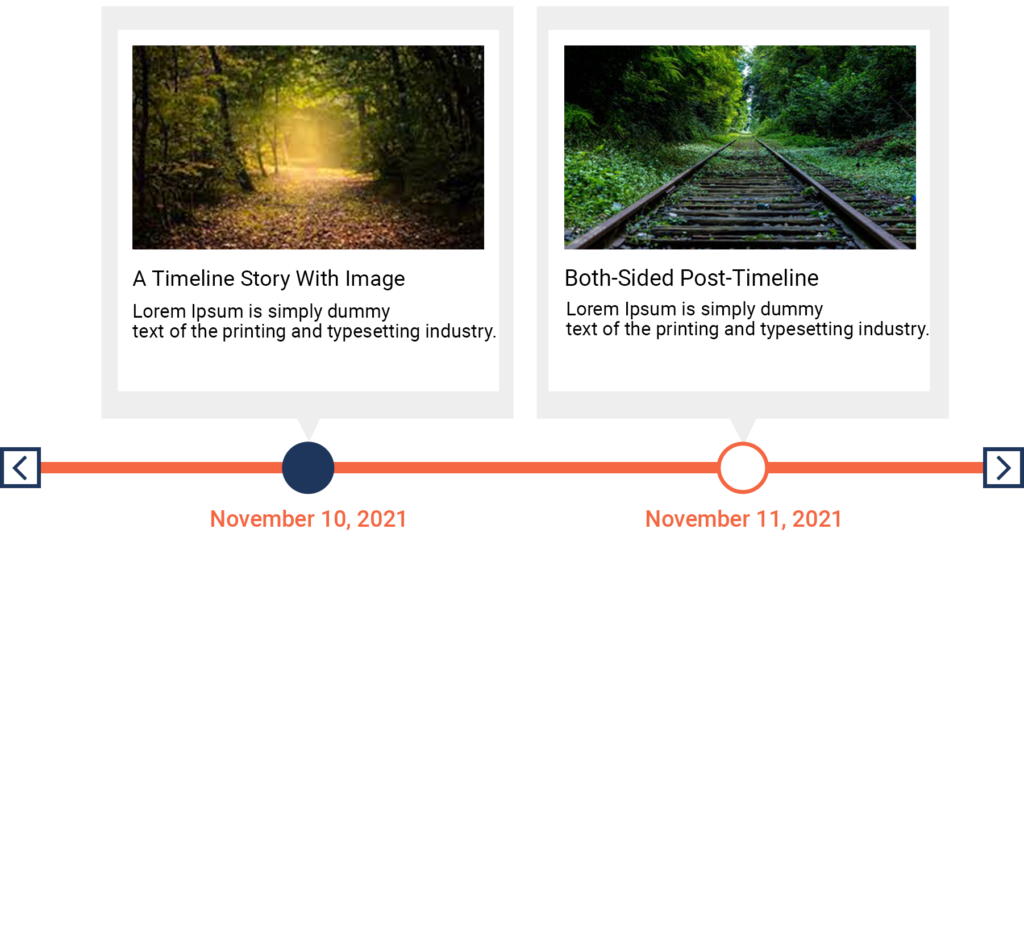
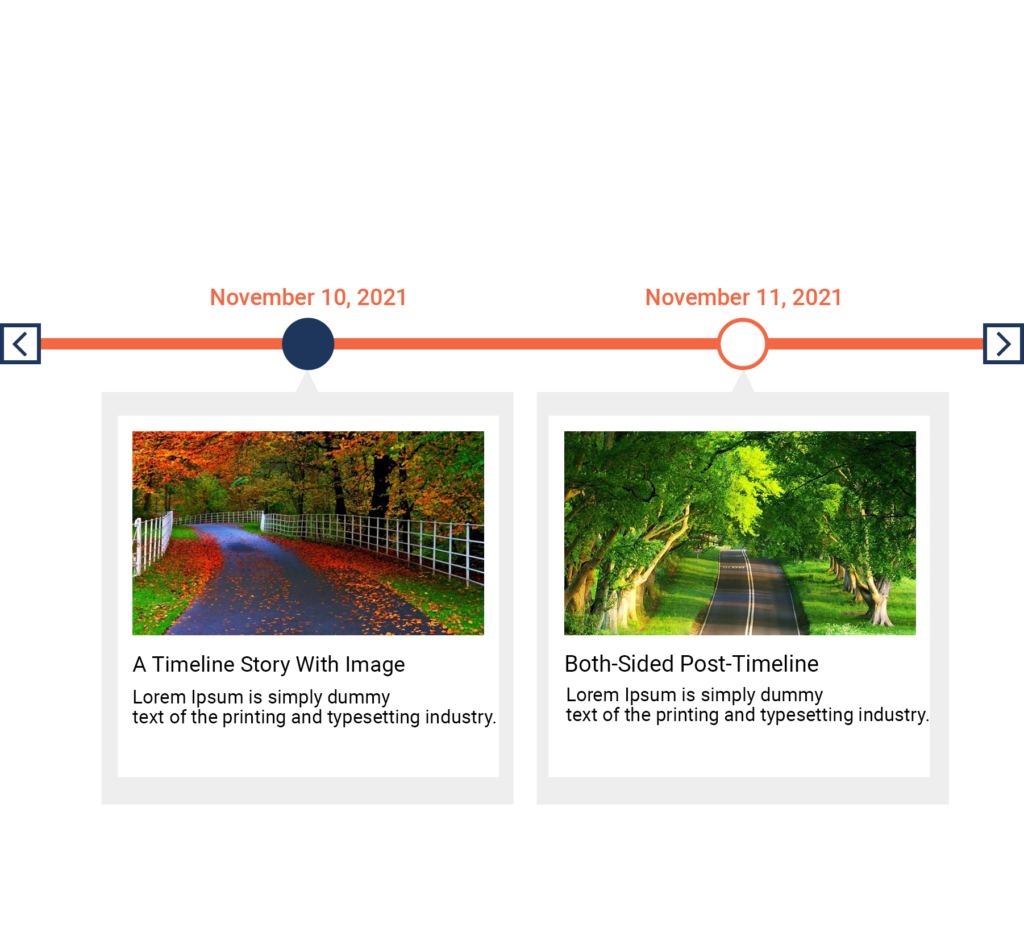
Bottom-Side Horizontal-Timeline
– With this option you can create bottom-sided vertical content-timeline or post-timeline.
– Orientation Options allow to change Orientation of Connector, also there is three option left, right & both-side and you can select at a time any one.